STEP-BY-STEP GUIDE
HOW TO USE THE WIDGET
01
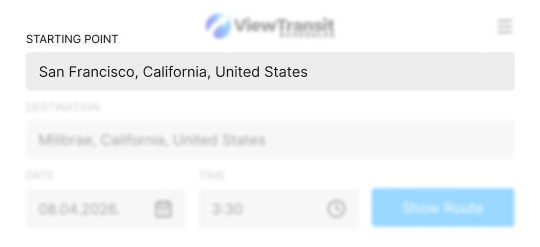
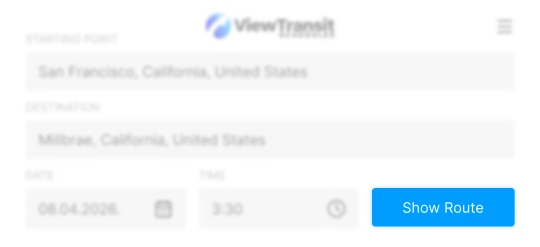
ENTER STARTING POINT
Type your departure location in the "STARTING POINT" field. The widget accepts full addresses, city names, or landmarks.

EXAMPLE: San Francisco, California, United States
02
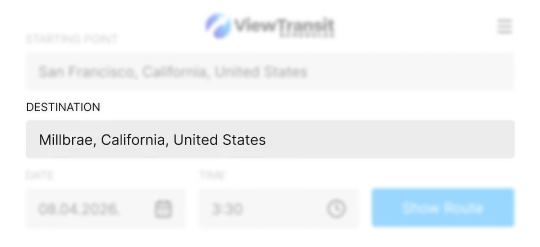
ADD YOUR DESTINATION
Enter where you want to go in the "DESTINATION" field. The widget will calculate routes between these two points.
EXAMPLE: Millbrae, California, United States
03
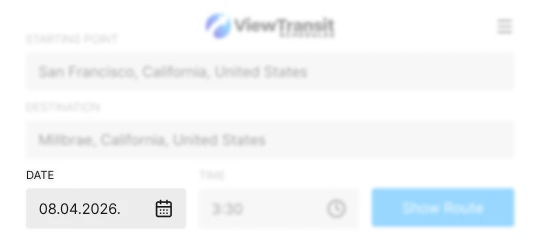
SELECT TRAVEL DATE
Click the date field to choose when you plan to travel. The widget displays the current date by default. Use the calendar picker to select any future date.

EXAMPLE: 08.04.2026
04
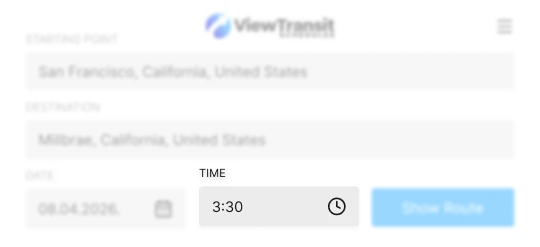
CHOOSE TIME OF DAY
Set your preferred departure or arrival time. This helps the widget provide the most accurate transit schedules and connections.

EXAMPLE: 3:30 AM
05
GENERATE YOUR ROUTE
Click the "Show Route" button to generate optimized routes. The widget will display multiple options combining walking, buses, trains, and other transit modes.

Get detailed step-by-step directions instantly
SUPPORTED TRAVEL MODES

BUS TRANSIT
Local and express bus routes with real-time schedules and stop information.

RAIL SYSTEMS
Metro, subway, light rail, and commuter trains with connection times.

WALKING DIRECTIONS
Detailed pedestrian routes with distance and estimated walking time.
Customize Your Experience
Adjust settings, control how the extension behaves, and access useful tools in one place.

Activate widget everywhere
ONEnable transit widgets on supported websites to instantly view schedules, routes, and departure times - anytime, anywhere.

Activate sponsored content
ONEnable sponsored recommendations within the extension to discover partner offers and featured tools. You can turn this option on or off anytime in settings.

Widget usage guide
Learn how to use the transit widget step by step - from detecting available routes to viewing schedules and departure times in seconds.

Rate your experience
Your rating helps us make ViewTransitSchedules even better.
POWERFUL CAPABILITIES
WIDGET FEATURES

REAL-TIME ROUTE CALCULATION
Instant route generation with live transit data and current schedules.
MULTIPLE ROUTE OPTIONS
Compare different routes to choose the best option for your needs.
ACCURATE TIME ESTIMATES
Precise arrival and departure times based on actual transit schedules.
STEP-BY-STEP DIRECTIONS
Detailed walking and transit instructions for every segment of your journey.
FUTURE TRIP PLANNING
Plan trips for any future date to ensure schedules are accurate.

GLOBAL COVERAGE
Works with transit systems in major cities worldwide.